 Feng Ruohang
c46b16ec62
Feng Ruohang
c46b16ec62
The transitional references land in one commit, because they are only correct
together: the repository is pgsty/silo, its default branch is main, and nothing
in the tree should point a user at the old names.

Changed:

- Workflow branch filters. go.yml and vulncheck.yml gated on `branches: master`
  for both push and pull_request, so renaming the default branch would have
  taken automatic CI offline with no error and no signal - the workflows would
  simply never trigger again. They now name main.
- Release target. goreleaser's `release.github.name` becomes silo, which is
  what actually decides where a tagged build publishes. sign-release-rpms.sh's
  GH_REPO default follows.
- The OCI `image.source` label, the Helm chart `sources` entry, the security
  advisory link in the issue-template config, and the go.mod comment citing the
  LDAP TLS fix.
- 115 occurrences across README, README_ZH, SECURITY, CONTRIBUTING and 30 docs
  pages, including 72 links that also carried the master branch in their path.
  Those matter most: GitHub redirects clone, fetch, push and web URLs after a
  rename, but raw.githubusercontent.com does not, and neither follows a branch
  rename - every one of those links would 404 twice over.
- Three error strings in cmd/erasure-sets.go, cmd/storage-errors.go and
  internal/config/errors.go that print an issue URL to operators. These are Go
  string literals inside rebrand-guard's brand allowlist, so the baseline is
  regenerated. The regeneration removes exactly those three entries and adds
  none; all twelve other protected sets, including the 9014 exported symbols,
  are byte-identical.
- The transitional-naming disclaimers in README, README_ZH, SECURITY and
  CONTRIBUTING are dropped, since they no longer describe anything.

Deliberately unchanged, all three because they exist to reject or freeze the old
name rather than to point at it:

- buildscripts/minio-upgrade.sh pins pgsty/minio@sha256:b6bfe72... - the frozen
  pre-rebrand image is the control group for the MinIO-to-Silo upgrade test.
- helm-migration-guard rejects any rendered container still pulling pgsty/minio.
- verify-rebrand.sh rejects the same in the delivery surfaces.

Also unchanged: docs/config/README.md links to pgsty/mc/blob/master, and that
repository's default branch really is still master. It moves when mc does.

verify-rebrand.sh gains three assertions so this cannot silently regress: no
source reference may name pgsty/minio outside the three allowlisted guards, no
link may target pgsty/silo's master branch, and go.yml and vulncheck.yml must
filter on main. Both new rejections were negative-tested - reintroducing a
master branch filter and adding a pgsty/minio URL each fail the gate with the
specific message.

This commit assumes the rename actually happens. Until the GitHub branch and
repository renames are executed, the links it introduces do not resolve.

Co-Authored-By: Claude Opus 5 (1M context) <noreply@anthropic.com>
5.4 KiB
Using Silo with Veeam
When using Veeam Backup and Replication, you can use S3 compatible object storage such as Silo as a capacity tier for backups. This disaggregates storage for the Veeam infrastructure and allows you to retain control of your data. With the ease of use of setup and administration of Silo, it allows a Veeam backup admin to easily deploy their own object store for capacity tiering.
Prerequisites
- One or both of Veeam Backup and Replication with support for S3 compatible object store (e.g. 9.5.4) and Veeam Backup for Office365 (VBO)
- Silo object storage set up per https://silo.pgsty.com/docs/
- Veeam requires TLS connections to the object storage. This can be configured per https://silo.pgsty.com/operations/network-encryption/
- The S3 bucket, Access Key and Secret Key have to be created before and outside of Veeam.
- Configure the compatible
mcclient for the Veeam Silo endpoint - https://silo.pgsty.com/operations/deployments/baremetal-deploy-minio-on-redhat-linux/
Setting up an S3 compatible object store for Veeam Backup and Replication
Create a bucket for Veeam backups
Create a bucket for Veeam Backup, e.g.,
mc mb mysilo/veeambackup
NOTE: For Veeam Backup with Immutability, create the bucket with object lock enabled, e.g.,
mc mb -l mysilo/veeambackup
Object locking requires erasure coding enabled on the silo server. For more information see https://silo.pgsty.com/operations/concepts/erasure-coding/.
Add Silo as an object store for Veeam
Follow the steps from the Veeam documentation for adding Silo as an object store - https://helpcenter.veeam.com/docs/backup/vsphere/adding_s3c_object_storage.html?ver=100
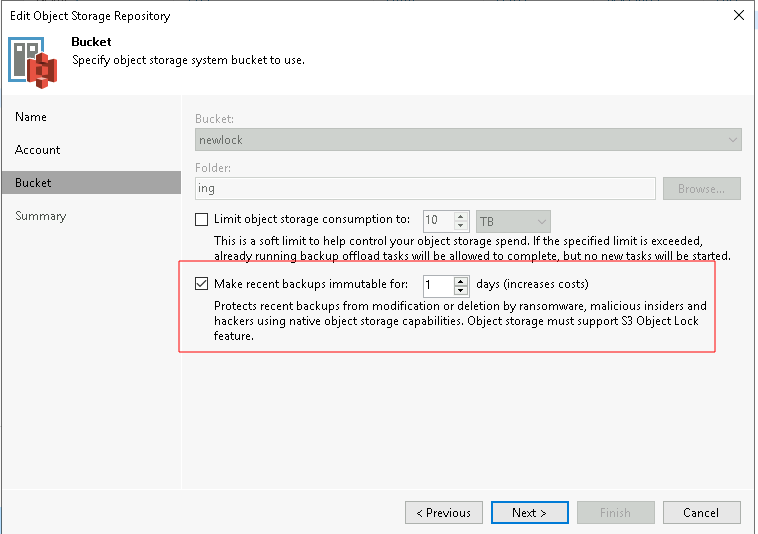
For Veeam Backup with Immutability, choose the amount of days you want to make backups immutable for
Creating the Scale-out Backup Repository
-
Under the Backup Infrastructure view, click on Scale-out Repositories and click the Add Scale-out Repository button on the ribbon.
-
Follow the on screen wizard
-
On the Capacity Tier screen, check the box to Extend scale-out backup repository capacity with object storage checkbox and select the object storage. If you want to be able to test backup data immediately after a job is run, under the object storage selection, check the "Copy" box and uncheck the "Move" box.
Create a backup job
Backup Virtual Machines with Veeam Backup and Replication
-
Under Home > Jobs > Backup in Navigation Pane, click on Backup Job button in the ribbon and choose Virtual Machine. Follow the on screen wizard.
-
On the Storage screen, choose the Scale-out Backup Repository that was configured previously.
-
Continue with the backup job creation. On the Summary screen, check the Run the Job when I click Finish checkbox and click the Finish button. The backup job will start immediately. This will create an Active Full backup of the VMs within the backup job.
-
Since we selected Copy mode when creating the SOBR, the backup will be copied to the capacity tier as soon as it is created on the performance tier.
-
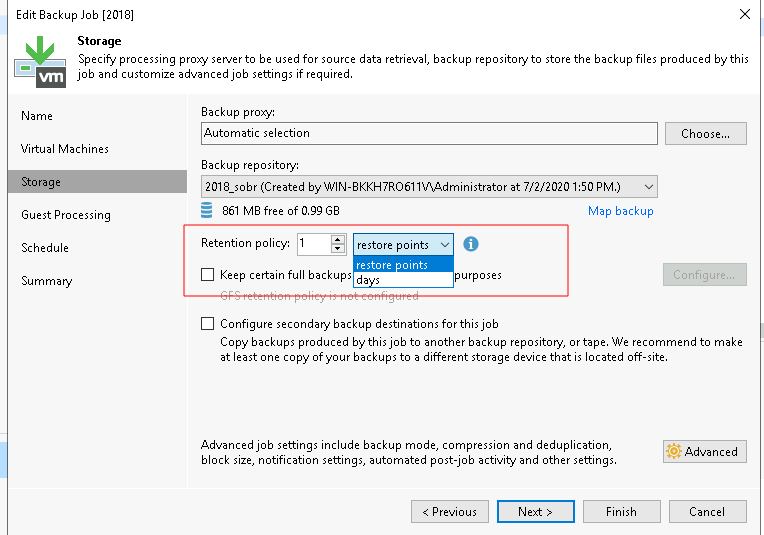
For Veeam Backup with Immutability, you can choose a number of restore points or days to make backups immutable.
Backup Office 365 with VBO
- Create a new bucket for VBO backups
mc mb -l mysilo/vbo
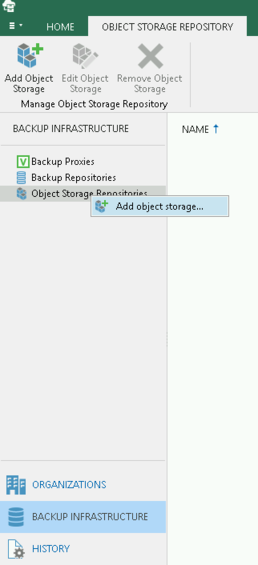
- Under Backup Infrastructure, right click on Object Storage Repositories and choose "Add object storage"
-
Follow through the wizard as above for Veeam Backup and Replication as the steps are the same between both products
-
Under Backup Infrastructure -> Backup Repositories, right click and "Add Backup Repository"
-
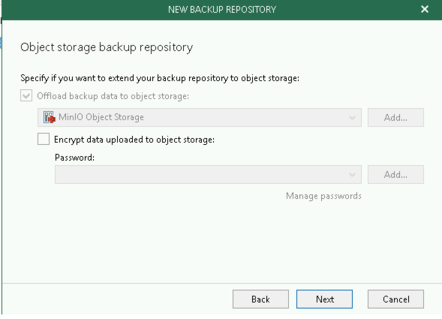
Follow the wizard. Under the "Object Storage Backup Repository" section, choose the Silo object storage you created above
- When you create your backup job, choose the backup repository you created above.
Test the setup
The next time the backup job runs, you can use the mc admin trace mysilo command and verify traffic is flowing to the Silo nodes. For Veeam Backup and Replication you will need to wait for the backup to complete to the performance tier before it migrates data to the capacity tier (i.e., Silo).
20:09:10.216 [200 OK] s3.GetObject veeam-silo01:9000/vbo/Veeam/Backup365/vbotest/Organizations/6571606ecbc4455dbfe23b83f6f45597/Webs/ca2d0986229b4ec88e3a217ef8f04a1d/Items/efaa67764b304e77badb213d131beab6/f4f0cf600f494c3eb702d8eafe0fabcc.aac07493e6cd4c71845d2495a4e1e19b 139.178.68.158    9.789ms      ↑ 90 B ↓ 8.5 KiB
20:09:10.244 [200 OK] s3.GetObject veeam-silo01:9000/vbo/Veeam/Backup365/vbotest/RepositoryLock/cad99aceb50c49ecb9e07246c3b9fadc_bfd985e5deec4cebaf481847f2c34797 139.178.68.158    16.21ms      ↑ 90 B ↓ 402 B
20:09:10.283 [200 OK] s3.PutObject veeam-silo01:9000/vbo/Veeam/Backup365/vbotest/CommonInfo/WebRestorePoints/18f1aba8f55f4ac6b805c4de653eb781 139.178.68.158    29.787ms     ↑ 1005 B ↓ 296 B